3. Basic workflow
This chapter explains the layout of the task pane and the basic workflow, such as how to read the abbreviation grid. For details of individual operations, see Chapter 4 onward.
3.1 Task pane layout
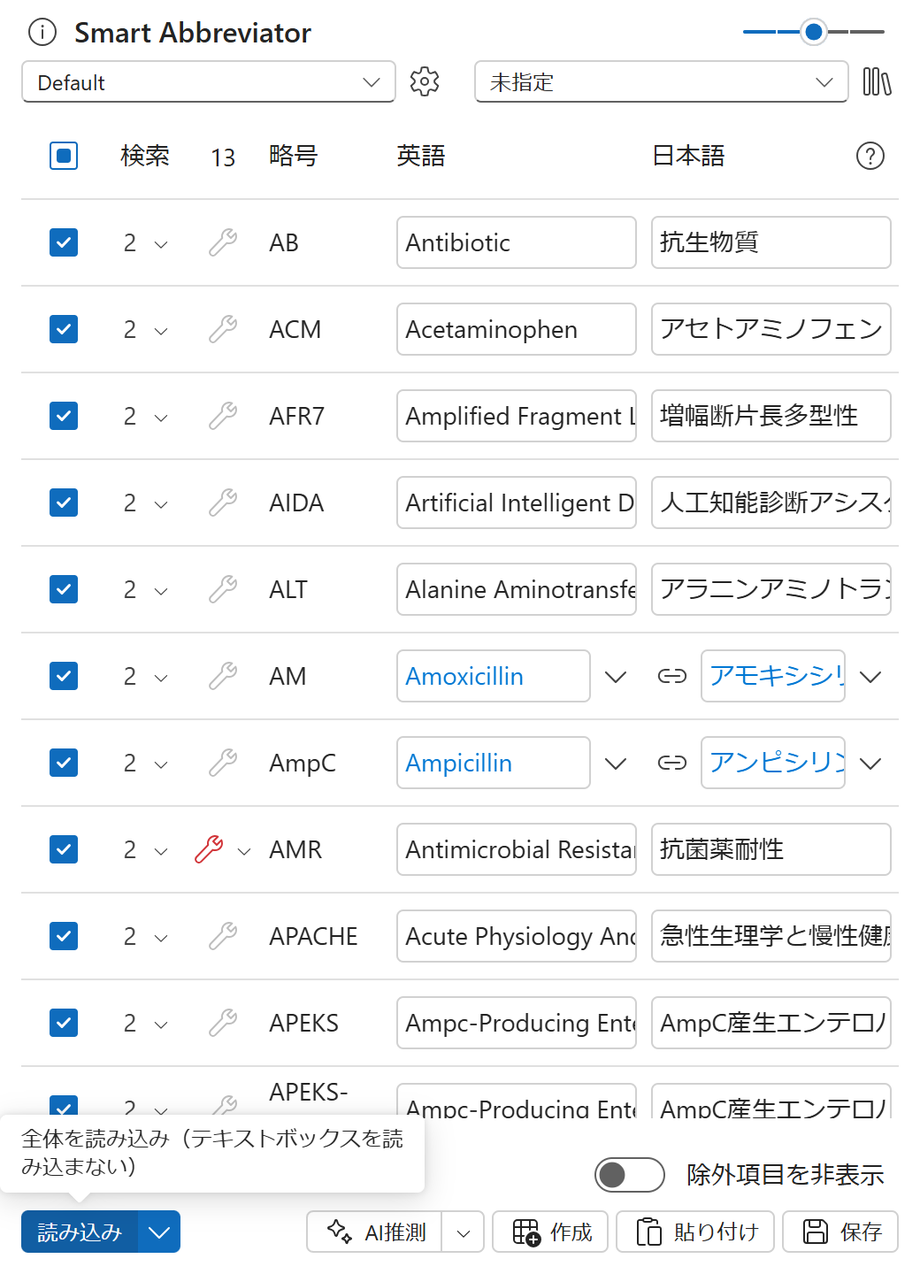
The task pane consists of an upper header, the abbreviation grid, and a group of operation buttons.
| Component | Contents |
|---|---|
| Header | A combo box for selecting the rules and project, the font-size adjustment, and icon buttons such as [About], [Settings], and [Dictionary management]. |
| Abbreviation grid | The list of extracted and added abbreviations. |
| Operation buttons | [Load], [Create], [Paste], [Save], and so on. |
Selecting the [Dictionary management] icon opens the dictionary management dialog, where you can review and manage the hierarchical dictionary (6. Dictionary management and Master aggregation).
Adjusting the font size
The font-size adjustment in the header changes the text display size of the task pane in steps. The changed size is retained at the next startup.
Color scheme (light / dark)
The task pane determines Word's color scheme (light / dark) at startup and displays accordingly. If you change Word's color scheme while it is running, restart the task pane to reflect the change.
3.2 Standard workflow
The standard flow for creating an abbreviation table is as follows.
- [Load] — Scan the document to extract abbreviations (4.1).
- Selection — Check the abbreviations you want to output in the grid, and confirm or edit the terms (4.2).
- Repair — Repair the issues detected by the full-term check (4.3).
- [Create] — Insert the abbreviation table into the document (4.5).
- [Save] — Register to the abbreviation dictionary as needed (5).
3.3 Reading the abbreviation grid
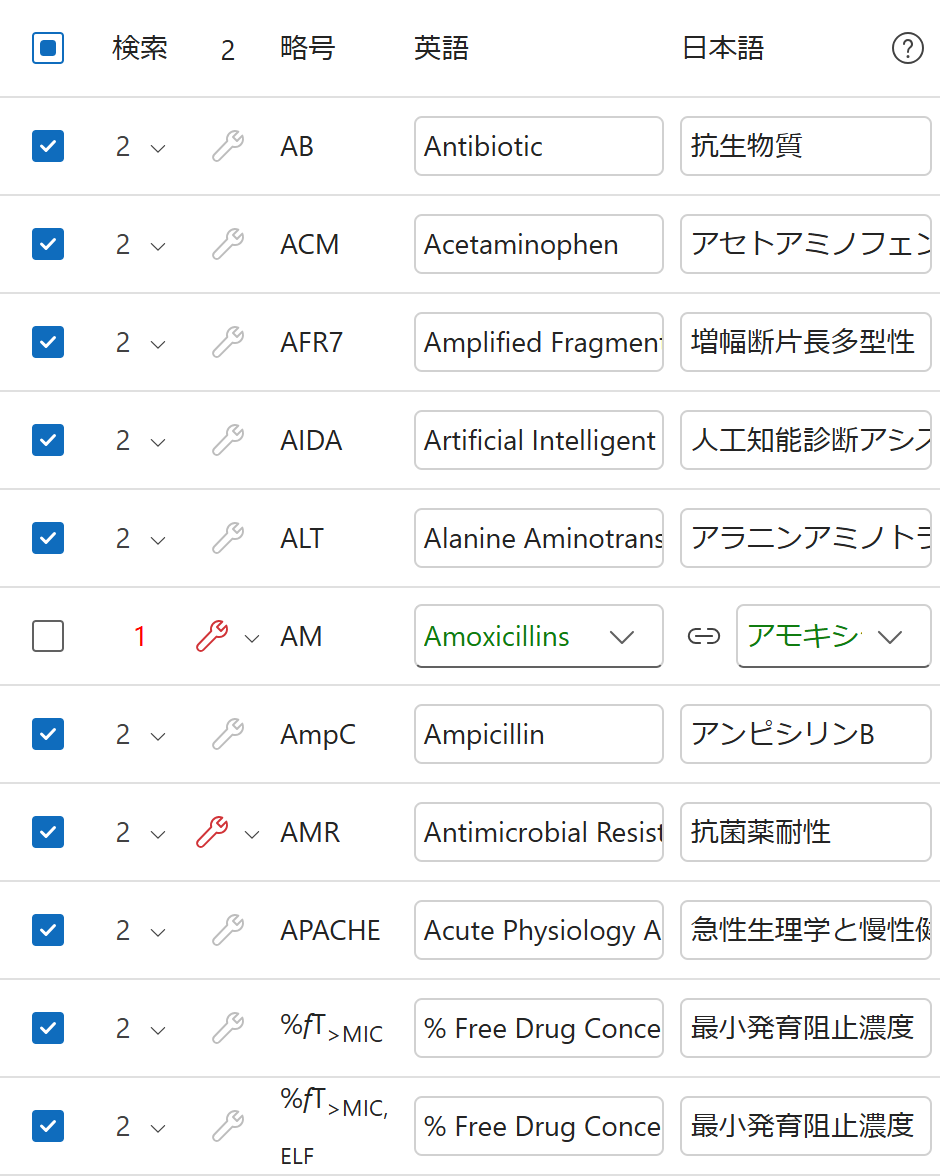
The abbreviation grid lists the extracted and added abbreviations. The main columns are as follows.
| Column | Contents |
|---|---|
| Check | Select whether to include the item in output and processing. The check box in the header sets or clears all items at once. |
| Search | Move to the relevant location in the document. The menu beside the button lets you choose "previous / first / last / after cursor". |
| Repair | Repair an issue from the full-term check (the wrench icon). |
| Abbreviation | The abbreviation string. |
| English | The English full term (term). |
| Japanese | The Japanese full term (term). |
In the Abbreviation, English, and Japanese columns, subscript, superscript, and italic formatting is displayed.
Cell states and color coding
The cell display changes according to the state of each abbreviation item.
| State | Display |
|---|---|
| An item whose English or Japanese term has been edited | The term cell background turns light blue (the "edited" indication) |
| An item with multiple candidates in the abbreviation dictionary | A combo box for selecting a candidate is shown |
| An abbreviation whose occurrence count is at or below the threshold | Warned in red |
| An item used as an abbreviation only once | Unchecked at load time (excluded from output; this applies only to exactly one use and does not depend on the threshold value) |
| An item with an unresolved (unrepaired) issue | The repair button (wrench) is emphasized in red |
| A repaired item | The repair button is disabled (dimmed) |
Header check count and remaining repairs
- Check count: The Check column header shows "Checked n / n" per abbreviation item (row). The header check box sets or clears all items at once.
- Remaining repairs: The Repair column header shows the number of items with unresolved repair issues. When one or more remain, selecting the header repairs the remaining issues in sequence (4.3).
3.4 Hiding excluded items
Turning on the "Hide excluded items" toggle just above the [Save] button temporarily hides the unchecked, excluded items from the grid.
Important: While this toggle is on, the header totals, check-all / clear-all, batch repair, abbreviation-table creation, paste into the body, and saving to the abbreviation dictionary all target only the visible items. The behavior becomes "what you see is what is processed," so check the display state before output.
The toggle state is retained at the next startup. The initial state is "show".