2. Installation and startup
2.1 Installation
The Smart Abbreviator web app is hosted centrally by the provider (K.K.eMaterials). There is no need to install it individually on each user's device.
Installation is performed by an administrator distributing the add-in to members through centralized deployment (Integrated Apps) in the Microsoft 365 admin center. Once distributed, the Smart Abbreviator button appears automatically on the Home tab of Word without any special action by users.
Note: On the Windows desktop edition of Word, the method of manually uploading a manifest from [My Add-ins] is not available. Installation is performed through centralized deployment by an administrator. For installation details, refer to your administrator or the installation guide.
2.2 Startup
Select the Smart Abbreviator button added to the Home tab of Word to start the task pane. The task pane is available in each open Word document.
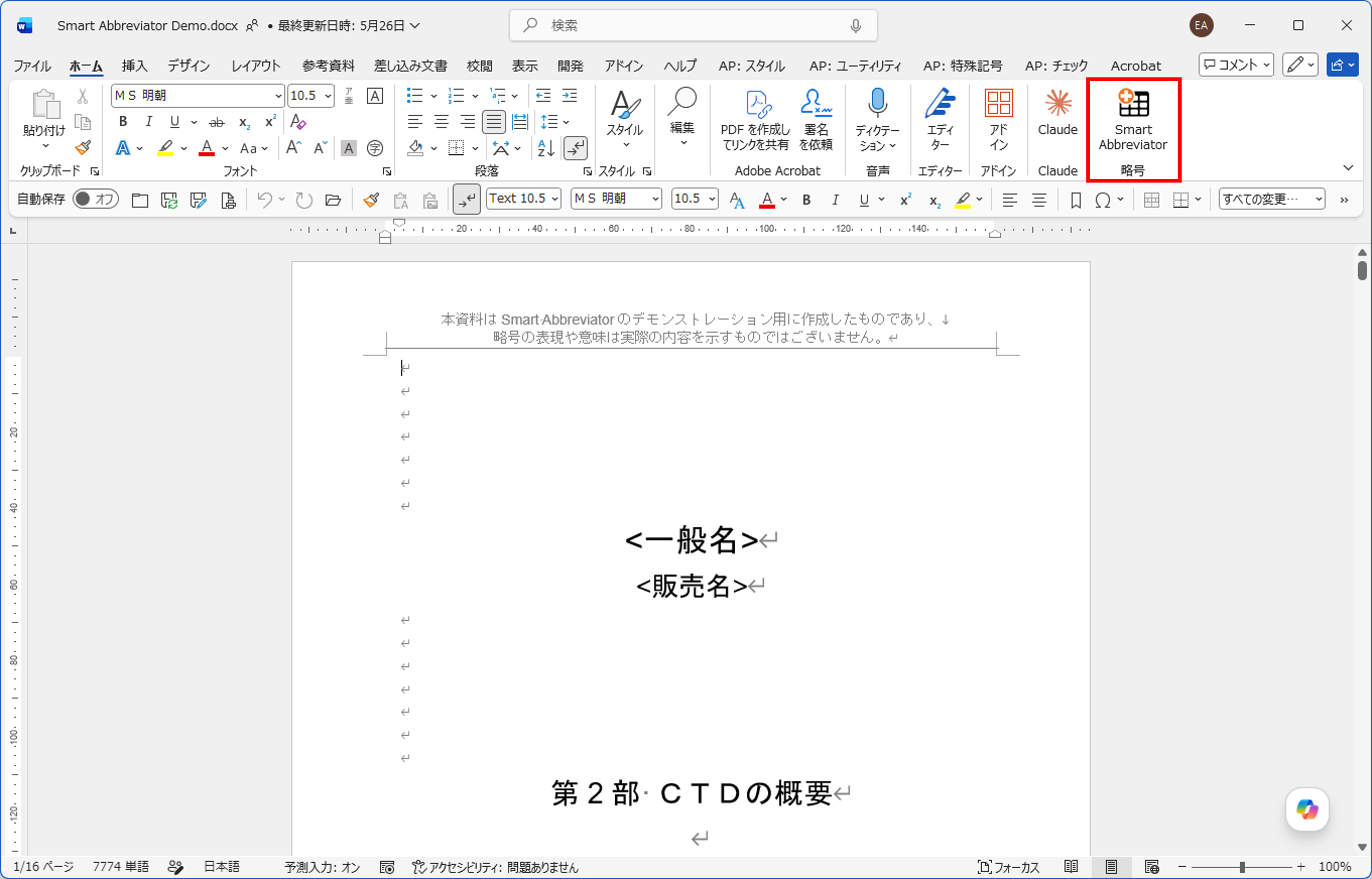
The following processing runs automatically at startup:
- Detecting the Office display language and applying it to the display
- License authentication
- Retrieving the Master rules
If license authentication fails, or if retrieving the Master rules fails, an error is shown and the features cannot be operated. For how to respond, see 10. License and support.
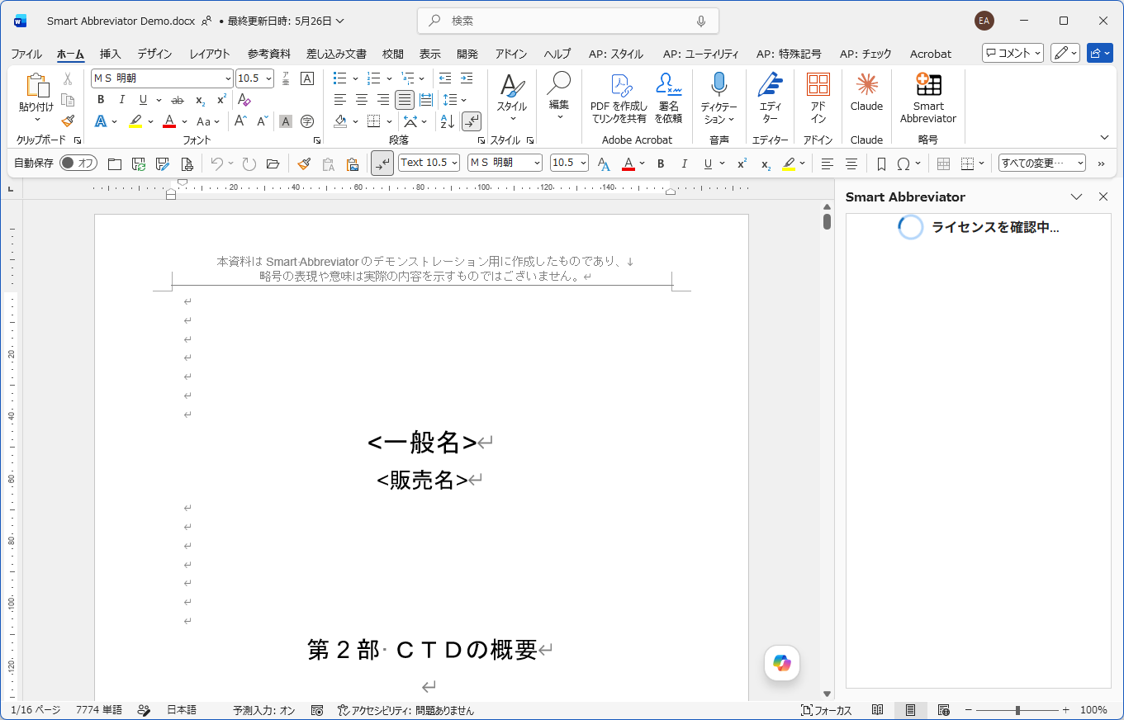
2.3 License authentication
At startup, the license key specified in the manifest and the user's identifying information are sent to the provider's license authentication server for authentication. On success, the license holder name, expiry date, and usage status are retrieved, and all features become available.
If authentication fails, a message appropriate to the cause is shown in the task pane. Typical cases are as follows.
| Situation | Display | Response |
|---|---|---|
| The license server cannot be reached | Warning (yellow) banner | Check your network connection and start again after a while. If it persists, contact support. |
| License expired (NG04) | Error (red) display | Ask your administrator to renew the license. |
| Seat limit exceeded (NG05) | Error (red) display | Wait for other users to finish, or contact your administrator. |
For details of each message, see 10. License and support.
2.4 Display language
The display language of the task pane switches automatically to follow the Office display language setting (Japanese, English, or Simplified Chinese). For a language that cannot be determined, it is shown in English.
To switch the display language, change the display language setting in Word (Office) and restart the task pane. There is no switch inside the task pane to change the language directly.
2.5 Product information
From the [About] button in the task pane, you can show the About dialog. The dialog shows the following information:
- Product name and product icon
- Version (with the build date and commit identifier)
- License holder name and expiry date
- Support URL
- Manual (a link to the online user manual)
- License notices for the OSS used (a "View license list" link)
- Loaded from (the host name of the Master rules)
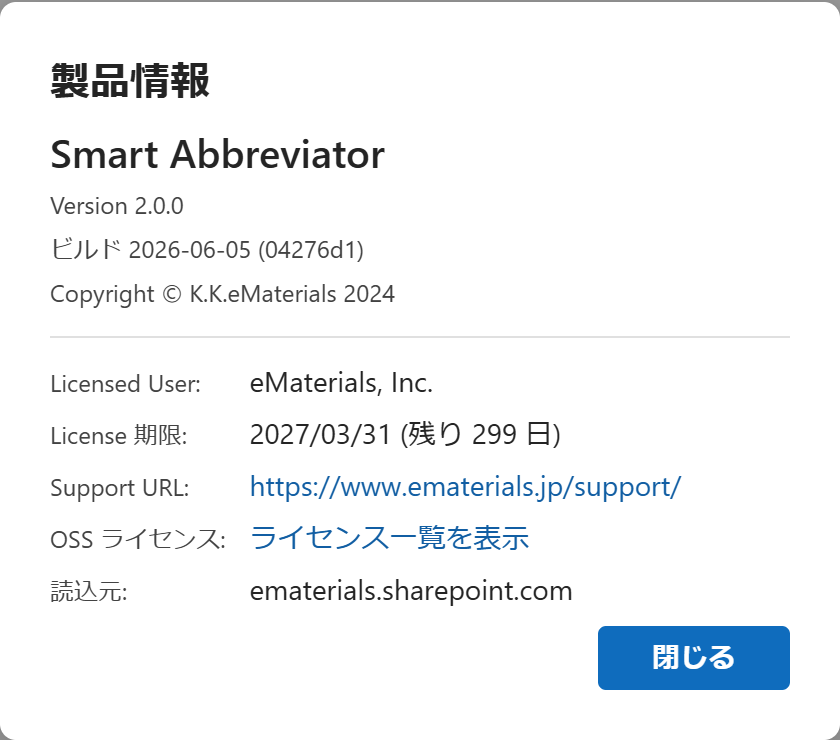
When you contact support, also providing the version, build date, and commit identifier shown in the dialog helps the investigation go smoothly.
Checking "Loaded from": The "Loaded from" field shows the SharePoint host name of the configured Master rules. Confirm that it matches your own tenant.