6. Dictionary management and Master aggregation
This chapter explains reviewing and managing the hierarchical dictionary in the dictionary management dialog (opened from the [Dictionary management] icon in the task pane header), and the administrator-oriented Master aggregation feature.
6.1 Dictionary management dialog
The dictionary management dialog opens when you select the [Dictionary management] icon in the task pane header. Here, the hierarchical dictionaries being loaded are listed. The abbreviation dictionary consists of the following four layers, merged according to priority (Personal > Project > Master > auxiliary).
| Layer | Contents |
|---|---|
| Master | The standard abbreviation dictionary standardized across the organization. |
| Project | A project-specific abbreviation dictionary. |
| Personal | A user's personal abbreviation dictionary. |
| Auxiliary | An auxiliary abbreviation dictionary added optionally. |
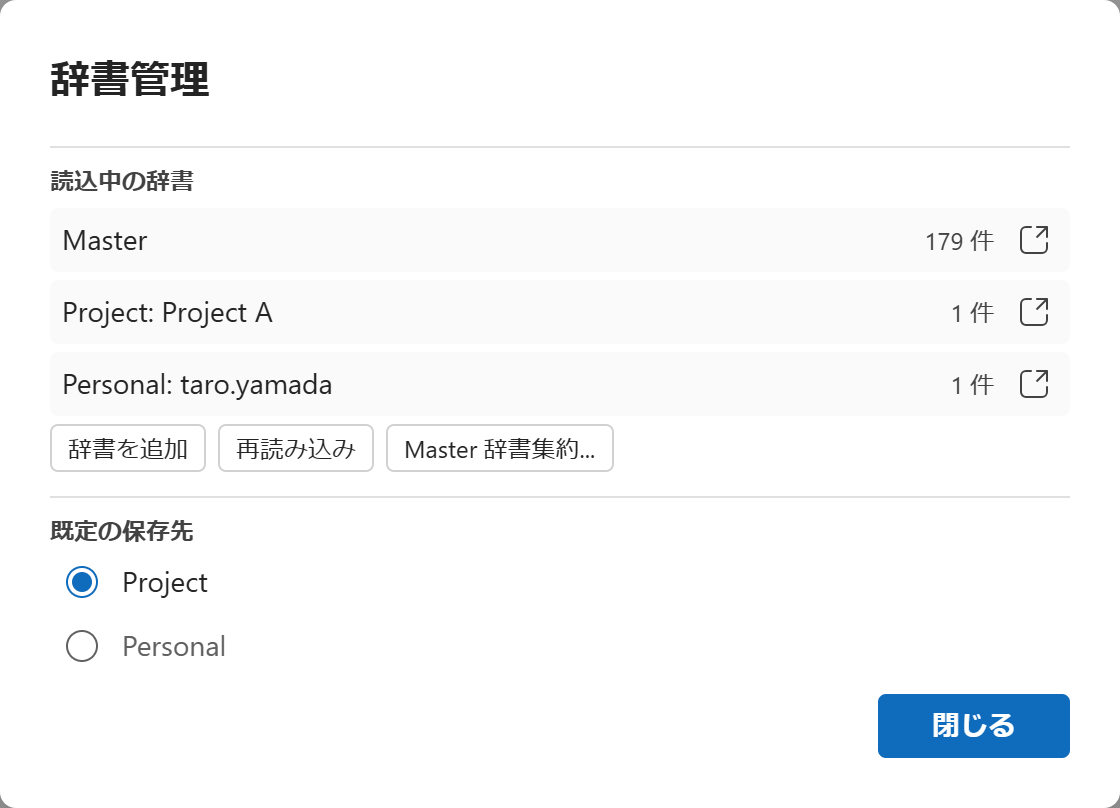
When the same abbreviation exists in multiple layers, the contents of the higher-priority layer are used.
Adding and removing auxiliary dictionaries
From [Add dictionary], you can add an auxiliary dictionary. There are two ways to add one:
- Select from project dictionaries: Choose from the list of dictionaries in the project folder.
- Enter URL directly: Directly specify the URL of an .xlsx on SharePoint that is outside the project folder.
An added auxiliary dictionary can be removed from the dictionary management dialog.
Reload and default save destination
- [Reload] updates each layer's dictionary to the latest state from SharePoint.
- "Default save destination" lets you specify the default destination (Project / Personal) when saving the dictionary.
Selecting a project
When you select the project that the document belongs to, the corresponding project dictionary is loaded. The selected project is saved in the document, so it is selected automatically the next time you open that document.
6.2 Master dictionary aggregation (for administrators)
Master dictionary aggregation is a feature that consolidates, into the Master dictionary, the abbreviations accumulated in Personal and Project dictionaries that are missing from or differ from the Master dictionary. It is intended for administrators who have write permission to the Master dictionary.
Open it from [Aggregate to Master...] in the dictionary management dialog.
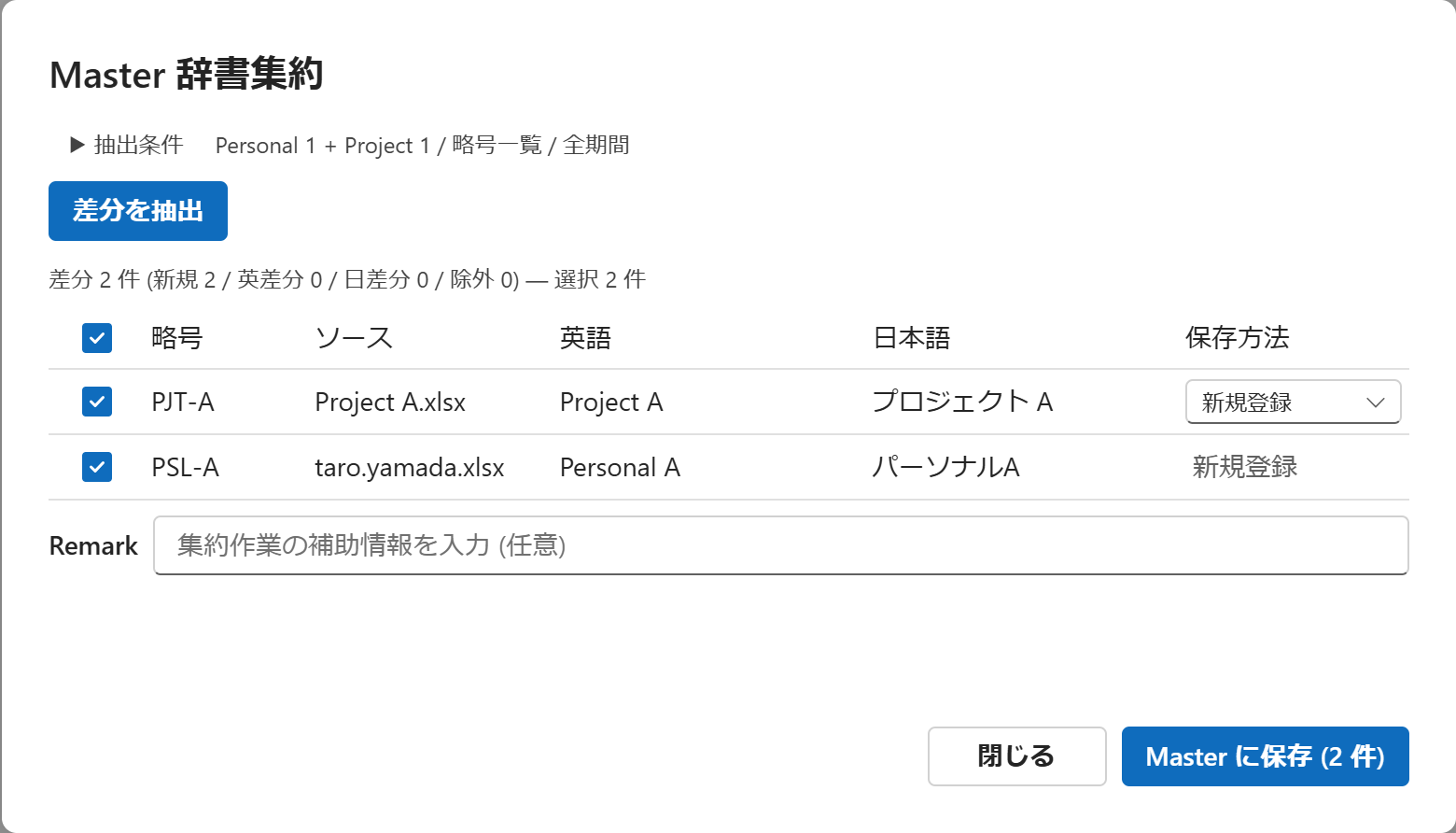
Operation flow
- Specify the filter conditions: Specify the target sources (Personal / Project), the sheets to compare (Abbreviations / Exclude), and the update-date range.
- [Extract diffs]: Compare against the Master dictionary in effect and list the differing items. If there is no difference, that is indicated.
- Select the items to save: From the list, select the items to save to the Master.
- [Save to Master]: Save the selected items to the Master dictionary. At the same time, delete the corresponding rows from the sources (the Personal / Project dictionaries).
⚠ Important — deletion from the sources: [Save to Master] saves the selected items to the Master dictionary and, at the same time, deletes the corresponding rows from the sources (the Personal / Project dictionaries). This is an operation that "moves items from the Personal and Project dictionaries into the Master dictionary," and it cannot be undone. Carefully review the confirmation message shown before execution (the number of items to save and to delete) before you proceed.
Fixed labels for the save method
The "Method" column of the aggregation grid, like the save dialog, shows a fixed label for rows where there is effectively only one choice.
- Fixed to "Exclude": Items destined for exclusion (sent to the not-detected sheet).
- Fixed to "Add new": Items with no existing Master row to update. In addition to cases where the abbreviation itself is not in the Master, an item is added as a new row when the abbreviation is the same but both the English and Japanese terms differ (a new combination of terms).
- "Add new / Update" selectable: Items where the abbreviation and either the English or the Japanese term match and only the other differs (when the Master's existing row to update can be identified).
Choosing "Update" updates the term in the Master's existing row where the abbreviation and one term (English / Japanese) match and only the other term differs (if multiple rows meet the condition, the first row is the target). "Add new" simply adds a new row.
Adding a Remark
If you enter a string in the "Remark" field at the bottom of the aggregation dialog, it is written to the Remarks column of all aggregation-target items (including those to add new, update, or send to the exclusion sheet). The field is reset to empty each time the aggregation dialog is opened; if you run with it empty, the Remarks column is overwritten with an empty value.